Deleting a Manager is a Straightforward Process. Here's How
If you're looking to delete a manager in the Remoly backend, follow these simple steps:
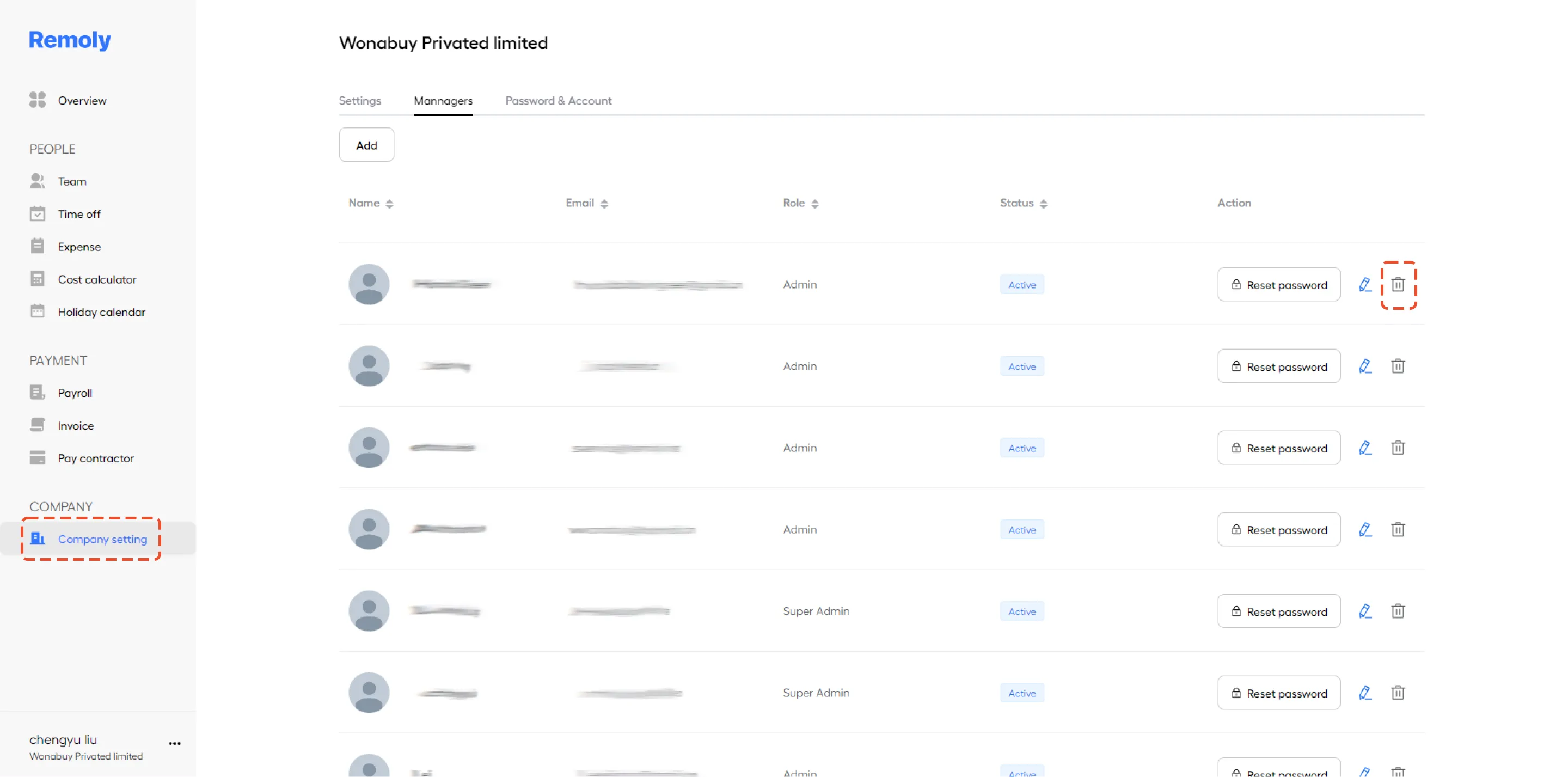
1. Navigate to 'Company Setting'
Begin by logging into your Remoly account. Once you're in, head over to the 'Company Settings' section. This is where you can manage all the essential configurations related to your company and team members.
2. Click on the Trash Bin Icon
In the 'Company Settings' section, locate the list of managers. To delete a specific manager, simply click on the trash bin icon next to their name. Confirm the action, and the manager will be removed from your system.
This straightforward process ensures that you can efficiently manage your team within Remoly, keeping your company's structure up-to-date. For more detailed guidance or troubleshooting, refer to Remoly's support documentation.
|
Efficient Team Structure Management Starts Here Managing team changes is a routine part of business growth. Remoly provides a comprehensive platform to handle team restructuring, onboarding, offboarding, and global compliance — all from one intuitive dashboard. Learn More About Remoly |
Sources:
Remoly — Your Global EOR & Employer of Record Partner
Serving 100+ Countries & Regions Worldwide
* This article is for informational purposes only and does not constitute legal advice. For specific compliance guidance, consult a qualified professional.
Related Articles